Tuesday, March 14, 2017

SQL Server SSL Connectivity Issue


I'm sure most of you may face different types of error while connecting to SQL Server via Management Studio or ODBC (or different methods). Exactly same thing happened in my client side when we encountered with the following:

SSL Security Error
SSL Security Error
 
Problem Description:

After monthly scheduled restart of one Application Server, the connectivity to Database Server from .Net Client was unable to establish connection to our Database Server. In addition, tried from connecting through ODBC that shows the error message which I mentioned above.

Application Server: Windows Server 2012 R2
Database Server: SQL Server 2005

Troubleshooting / Solution:

As the errors states "SSL Security error", it was pointing to something in the registry level encryption. After hours of troubleshooting (almost a day) and visiting 50+ blogs, we were able to solve this connectivity issue. 

Some observations while troubleshooting are as follows:

      a. This problem was specific to SQL Server 2005 version only because we tried the connectivity from Application Server to different version of SQL Server like 2008 and 2012 that was successfully able to connect. 

      b. TLS 1.0 in registry was not found. You can check here for this error in detail here. 

      c. No traces found in Windows Event Viewer as well as SQL Server Error Log.

      d. Tried playing with the dbnetlib.dll files too (May be for some this solution has worked).

      e. Installed SQL Server 2005 specific drives and tried connecting through ODBC.
       
      f. Raised this concerned with Microsoft. Since also the extended support for SQL Server 2005 ended last year on April 2016, Microsoft denied to support.

Last week there was some patching at Windows level. Due to this, two new entries (Triple DES & AES) were found in Ciphers on the below location:

Registry
After this discovery, we checked the connectivity by disabling both this algorithms. However, the issue still existed. Finally, tried the connectivity by deleting these algorithms and this time we were lucky and we were able to establish the connectivity to SQL Server 2005 again.

Thank you for reading. You can leave the feedback in the below comments space and stay tuned for more articles on SQL Server.

Thursday, February 4, 2016

Edition Upgrade in SQL Server

Hi Friends,

Check here for my last post of year 2015 on Hadoop. By this, lets start with this post on "How to perform in-place Edition upgrade". This procedure will work well with SQL Server 2005 and above.

Requirement:

There was a requirement from the client to upgrade the Edition from Enterprise to Standard for one of my SQL Server 2008 R2 instance.

So lets see how simple and time efficient is the in place upgradation:

Step 1: Launch the SQL Server setup file => Go to "Maintenance" tab on left hand side.


Step 2: Click "Edition Upgrade" link on Right hand side. This will check first check the rules.


(Next)


(Next)


Step 3: Very important step check the new edition here (Which I have highlighted below)


Step 4: Select the instance from the drop down for which the instance need to be upgraded.


(Next)


(Next)


Hold on for 3 Minitues and your in place edition upgradation is finished.

As you have seen how simple and time efficient it is to perform this, it comes with the cost. AND the cost is "if there is any error during the upgradation phase there is no procedure to rollback".

The only option left with us is complete uninstalltion and again installing the fresh setup. So before starting this procedure make sure you have taken the necessary precaution.

Have your ever faced this error.


Thursday, January 21, 2016

Error - Instant File Initialization Failed

Hi Friends,

Here comes the first post of the wonderful year 2016 ahead. Last year, we have ended with the post on Introduction to Hadoop. Lets start our first post with an Error in SQL Server.

Description:

One of the error which I faced very frequently now a days as you can see the below snapshot: "File initialization failed" because of which my Restoration activity was failed.

This error occurred when I was in the middle of a Migration activity, were I was suppose to Backup and Restore a Database from one Server to another one. After executing the Restoration command with stats=1, I was waiting for 1 percent to complete (after that I can have a nap because the backup file was huge and the activity was at mid night) but I was awaiting awaiting and awaiting for that 1 percent. It was getting suspicious because it should not take too long to complete even a percent.

So, I decided to stop the restoration. Once the session was stopped I found the below error message:

Instant File Initialization Failed

Instant File Initialization Failed
Basically, I will try to explain the behind the scene what exactly SQL Server does then we create or Restore a backup file in different post. In this post just lets look for the solution for the error.

Solution:

1. Run => Secpol.msc;

Open Local Security Policy => Local Policies => User Rights Assignment => "Perform Volume Maintenance Task" => Right click => Add the user through which SQL Server services are running. Like you see in the below snapshot.

2. No need to restart the Server.

3. Now, start the restoration process and this time it will work well.

Perform Volume Maintenance Task

Perform Volume Maintenance Task

So from now SQL Server will skip the Zero Initialization whenever we create or restore a Database. Later we will see what exactly does this mean in probably in different post.

Hope this will save your time and this will help you. Don't forget to drop a comment below. Also do vote below if it is Interesting, Informative or Boring.

Facing trouble while switching the Database from Single User Mode to Multi Mode check here for solution.

(It's been so long, more than couple of weeks I was away from my blog. I'm afraid this could further continue for few more, due to multiple projects on weekdays as well over the weekends. Due to this, my Blogging might also affected. So, stay tuned soon we will learn many things on SQL Server as well as Hadoop Administrator.)

Thanks,
Vikas B Sahu
Keep Learning and Enjoy Learning!!!

Tuesday, December 15, 2015

Introduction to Hadoop

Dear Friends,

Couple of months back I've published a post on SQL Server 2016 new features here.

Meanwhile, let me introduce you to Hadoop. We will learn this as a series of inter-related post. So don't miss any post in between and read it serially. Let's make it fun and interesting to learn Hadoop.

So, lets understand what are the formats of data that we handle in real word.
  • Flat File
  • Rows  and Columns
  • Images and Document
  • Audio and Video
  • XML Data and many more......
Big Data is an ocean of data which an organization stores. These data come in three V's i.e. Volume, Velocity and Variety.

Now-a-days huge Volume of data are getting generated by many sources such as Facebook,Whatsapp, E-commerce sites, etc, etc, etc. These huge volume of data are getting generated with high Velocity, can say it is multiplying every seconds, every minute, every hour. Along with the huge Volume and high Velocity numerous Variety of data is generated in different forms.

These data can be in any format i.e. structure, semi-structure as well as unstructured. Data stored in the form of row and column can be well defined as structured data whereas data in form of document, image, sms, video, audio,etc can be categories into unstructured and data in html or in XML format can be semi-structure data.

Q. I am sure you must be thinking that then how does a RDBMS handles these kind of unstructured or semi-structure data in there Database?

A. Well, to handle these kind of data's we have special data type such as Varbinary(Max), XML. Drawback of this is, if we are storing an image, it is stored in binary format within the database; whereas actual image is stored in Filestream or the Server itself. Hence there is an performance impact during storing and retrieving Petabyte of data's.

Moreover to this, Big Data is not just about maintaining and growing the data year on year, but it is also about how you manages these data's to make an informative decision. Data in Big Data can also comes in various complex format, to manage and process these type of data we need large set of cluster servers.
BIG DATA & HADOOP

With this introduction to Big Data, now let me introduce you to Hadoop. 

Hadoop is a large set of cluster servers which is built to process large set of data. It has two main core component i.e. 'Hadoop MapReduce' (Processing Part) and 'Hadoop Distributed File System' (Storage Part). Hadoop project comes under Apache and that is why it is called as 'Apache Hadoop'. The idea behind these two core component came into existence when Google has released there two white paper of there project on 'MapReduce' and 'Google File System (GFS)' in the year 2004.
Hadoop was created by Doug Cutting in 2005. Cutting, He was working at Yahoo! at the time he build the software, it was named after his son's toy elephant.

Wikipedia defines Hadoop as "an open-source software framework written in Java for distributed storage and distributed processing of very large data sets on computer clusters built from commodity hardware"

Hadoop is an open source framework available in free as well as commercial use under Apache license. It allows distributing and processing of dataset across the large Cluster set. On top of this, there are lot more application build by other organisation who use Hadoop or continuously work on this product which all comes under 'Hadoop Ecosystem'. Check here to find the list of projects under Hadoop Ecosystem. As we move further we will see post on the important projects under Hadoop Ecosystem.

Apache Hadoop Architecture consist of following components:
  • Hadoop Common: It contains the libraries and other utilities needed by other module of Hadoop.
  • Hadoop Distributed File System (HDFS): It is cluster of Servers with commodity storage which is used for data storage across the cluster.
  • Hadoop YARN: This component is used for Job scheduling and Resource management in Cluster.
  • Hadoop MapReduce: The processing part of the data is done by this component. 
At least now, I can consider that you are having a fair enough idea about this technology. But how can or who is the best person to get into Hadoop??

Technical answer for that would be those who are interested to learn this technology can get in two ways:
  • As a Developer
  • As a Administrator
  1. As a Developer: Hadoop is a framework which is built in JAVA language. So having JAVA background can get easy access to become a Hadoop Developer. Since the growing popularity of Hadoop, now a days this is the most common designation you can find in Job sites. 
  2. As a Administrator: Most organisation with Hadoop installation prefer for a Part time or a
    Hadoop Administration

    Full time Administrator to manage there Hadoop Clusters. It is not compulsion that the admin should have the knowledge of JAVA to learn this technology. Indeed! they should have some basics for troubleshooting. Candidate those who are having knowledge with Database Admin (SQL Server, Oracle, etc) background who already have troubleshooting, Server maintenance, Disaster Recovery knowledge are preferred or anyone with Network or Storage or Server Admin (Windows\Linux) skills  can be the other best choice. Here in this post it is mentioned in detail who suits best for Hadoop.     
Following might be the questions in your mind if we want to get start with Hadoop Admin:

  1. Do we need any DBA skills? Of course Yes; If we need to Admin the Hadoop Cluster (Maintaining, Monitoring, Configuration, Troubleshooting,etc). 
  2. Do we need to learn Java? Yes; At least some basics to understand the Java errors while troubleshooting any issue.
  3. Do we need to understand Non-RDBMS? Yes; Hadoop understand both SQL and NoSQL (Not only SQL). So having knowledge on Non-RDBMS product is most important.
  4. Do we need to learn Linux too? Yes;  at least the basics.
In our next post we will see the concept of HDFS (Hadoop Distributed File Structure).

Interested in learning SQL Server Clustering check here. Stay tuned for many more updates...

Keep Learning and Enjoy Learning!!!

Monday, November 2, 2015

Error - While Putting Database from Single to Multi User Mode

Dear Friends,

Click here to check how to start the SQL Server without TempDB Database. Let's learn what to do or how simple it can be to change the Database Mode from Multi User to Single User Mode or vice-versa?

Indeed! it is simple with the following command:

a. Alter Database Out set Single_User 
b. Alter Database Out set Multi_User

If we don't mention any termination clause like above it will run until the statements get completed.

Suppose there are n numbers of users connected to the Database and you executed the above command it will take hell lot of time to complete.
So rather, you can force disconnect the users to put the Database in Single User mode you have to fire the below command:

Alter Database out set Single_user with Rollback After 30 -- After 30 Seconds it will cancel and Rollback the Query

Alter Database out set Single_user with Rollback  Immediate -- It will immediately cancel and Rollback the Query

Alter Database out set Single_user with No_Wait -- If  there is any incomplete transaction No_Wait will Error

But again it might get horror if the Databases is in Single User and you cannot access the Database because only one connection can be made at a time and just think that connection is taken by the system i.e. SQL Server.

In this situation you are locked out, reason you cannot access the Database. Like you can see in the snapshot the Database Out is used by the system i.e. it is used by the Background process.

If you try to bring back the Database again in Multi User mode system will throw the following error:


Another possibility you can try would be detaching the Database. But when I tried detaching the Database, SQL Server will first kill the connections to the Database. Rather I should frame it as SQL Server will kill only the User connect and not the system connection.

After loads of struggle we were back to square one, that our Database was not getting back to Multi User mode. Seems it was like a deadlock between System SPID with Out Database. So we enabled the trace flag and checked the Error Log file. So following snapshot confirms that there was an deadlock:

DBCC TRACEON (1204,1222,-1)

Deadlock Graph
Deadlock Graph
If we try to Alter the Database to put it in Multi User mode. We will get a deadlock and since our Alter Statement is having low priority it will fail with the error message:


After random tries we tried the following command and it saved us. We have to set the deadlock priority high and then execute the Multi User mode query like below:

Set Deadlock_Priority High
Go
Alter Database Out Set Multi_User

So what this will do is it will set the Dead Lock priority High and Alter the Database to Multi User mode.

Guys do share the feedback about this article and of course about the blog too.

Want to start learning SQL Server Clustering?? Check here the three part series on SQL Server Clustering.

Do you know MS SQL Server 2016 is ready to launch?? Check here the two part series on New Features of SQL Server 2016.

Keep Learning and Enjoy Learning!!!

Tuesday, October 20, 2015

Error 233 - No process is on the other end of the pipe

Hi Guys,

As we have seen here an error related to SQL Server Restart. Today we will see another error i.e. Error 233 "A connection was successfully established with the server, but then an error occurred during the login process."

You might have faced this common issue in your DBA career and yes the solution is relatively simple.

So what I was doing, I was connecting to the SQL Server from Windows Login but during the login process it failed and prompted the below error message:

Error 233 in SQL Server
As I said this seems an common problem so there might be multiple workaround for this.

Now, for me the solution was to start the SQL Server management Studio (SSMS) under "Run as Administrator" (When I was fresher, I use to always wonder what difference it makes if I start any program under Run as Administrator?? Let's find out the reason for that).

Reason for this error was:

a. When we are running an application under "Run As Administrator" we get extra privileges which we may not have under the local user account.

b. So running the program under Run As Administrator will grant extra rights to the account (but it should have admin rights in Active Directory).

Once I started the SSMS under Run as Administrator and connected to SQL Server it succeeded.

There might be chances that this may not solve this  issue, check here to find more work around on the issue.

Do you know?? We should properly set the Auto Growth parameter in Database else it would end up with consuming extra space. Check here.

Thanks,
Vikas B Sahu

Keep Learning and Enjoy Learning!!!

Thursday, October 8, 2015

How to Start SQL Server Instance when TempDB is unavaliable

Hi Guys,

Here is my last post on error while starting the SQL Server Analysis Services (SSAS) and here I've shared earlier on a issue, I request you please read that before proceeding.

Today we will learn a fact on the internal of SQL Server Tempdb (which was little unusual for me before I actually faced it. So I must say it was a learning experience).

Following are some questions that comes to my mind when I think about TempDB:

1. Where and how exactly the TempDB Database is used?

2. What exactly happened when your TempDB is corrupted?

3. Have you ever though of restarting the SQL Server Services without TempDB? Is it possible to do that?

4. Is it possible to Backups (Full, Differential or Log) and Restore the TempDB Database?

Let's see the possible answers to these questions:

Q 1. Where and how exactly the TempDB Database is used?

Ans. i. It is a System Database. Database ID for TempDB is 4. 
        ii. It is use to store temporary Data. Whenever we create a hash table (#abc) it gets created in TempDB.  
        iii. It also used for Sorting of Data (for e.g. If we use Order by clause in a query it uses TempDB to sort).
        iv. Also used for Row-Versioning.
        v. Recovery model of the TempDB is "Simple". 
        vi. We cannot run DBCC CheckDB on TempDB. 
        vii. We cannot detach the TempDB files. (Rather I must say one cannot detach the system Database files) 
        viii. Most important it is re-created every time whenever SQL Server is restarted. By checking the "Last Creation Date" we can see when was the last SQL Server was restarted (can expect as an interview question).

2. What exactly happened when your TempDB is corrupted?

Ans. i. Since we cannot run DBCC CheckDB; we cannot identify if there is any corruption on TempDB Database.
        ii. The only way to get rid of  corruption is to restart the SQL Server Services. Since it will recreate the Database files again.
        iii. Without TempDB Database SQL Server Services cannot be started. 
        iv. Model Database acts as the template for all the user created Database as well as for TempDB. So if model Database is unavailable TempDB will not get create and hence SQL Server  Service cannot be started.


TempDB Cycle
TempDB Cycle

3. Is it possible to Backups (Full, Differential or Log) and Restore the TempDB Database?

Ans. i. Since TempDB is recreated every time when ever we restart the instance. We cannot Backup this Database.

4. Have you ever though of restarting the SQL Server Services without TempDB? Is it possible to do that?

Ans. (Now here is the question what made to write this post)

i. As said above, TempDB is restarted every time when a SQL Server is restarted. (This will create both the mdf and ldf files on the location present for TempDB in the Master Database). 

ii. But what if there is a disk level corruption or the defined location is not present due to xyz reason.

iii. Now here comes my question: Will the SQL Server Services will start??? So, answer for this is YES!!! it is possible (Till now it was NO for me). 

iv. If  you will start the SQL Services normally (assuming there is a disk level corruption on the disk were the TempDB was placed) the disk is unavailable you will get the below error message:


TempDB Error Log
TempDB Error Log
v. So basically starting the SQL Services normally will not help you. Therefore we have to start the SQL Server Instance in Single User Mode as well as Minimally Configured. 

Startup Parameter
Adding Parameter in Startup parameter
vi. You can do that by adding -m (Single User Mode) and -f (Minimal Configuration) parameter in the startup parameter in the SQL Server Instance.

vii. This will start your SQL Server in minimal configuration (of course TempDB files is created) placing the TempDB files i.e. Data file on the User Database Data file location and the Log file on the User Log file location.

viii. And by this way your TempDB files are placed on different location other than the actual location for TempDB files.

ix. But this different location is temporary and only if you will start your SQL Server Instance in minimal configuration. So it is important to change the TempDB location to another drive by using the following command:


USE master;
GO
ALTER DATABASE tempdb
MODIFY FILE
(NAME = tempdev, FILENAME = 'C:\Program Files\Microsoft SQL Server\MSSQL10_50.SQL2008R2\MSSQL\DATA\TEMPDB\Tempdb.mdf');
GO
ALTER DATABASE tempdb
MODIFY FILE
(NAME = templog, FILENAME = 'C:\Program Files\Microsoft SQL Server\MSSQL10_50.SQL2008R2\MSSQL\DATA\TEMPDB\Tempdb.ldf');
GO

SELECT name, physical_name AS Location
FROM sys.master_files
WHERE database_id = DB_ID(N'tempdb');
GO

Hope this post will give you a different angle on concept of TempDB. Further we will see so more findings on TempDB. Share your comment on this to discuss more on it. You might be aware on SQL Server 2016 check here for the new features in it.

Thank You !!!

Wednesday, October 7, 2015

Error - Analysis Services Failed To Start in SQL Server 2012

Hi Guys,

Read my last blog on Error while configuring SQL Server Cluster here. As a DBA, we cannot or say we should not limit our self to only Database Engine related stuff. Today let's learn something related to Analysis Service i.e. SSAS.

In one of the migration project, I wanted to migrate an SSAS Database which is called as "Cube" to another Server.

So firstly, I needed the backup of the Cube. See the following command to take the backup of the Cube.
SSAS Cube Backup Code
Where Test is the Database Name and Test.abf is the Backup Name (Which will take the Backup in the default location).

Now, I wanted to restore this backup to my new Server. But when I tried to connect the SSAS, it got  failed due to SSAS was disabled. So tried to start the SSAS and it gave the following error:

SQL Server Analysis Services Stopped

And when I checked Windows Event Viewer it captured the below error message:

Windows Event Viewer Error
Windows Event Viewer
From the Error in the Event Viewer it is confirmed that it is related to something with permission issue. So what we commonly do is "Going to that particular drive\ Folder and give full right to the account which runs the SQL Server Analysis Services". But unfortunately it din't helped.

I started searching more in google related to this error and in most of the sites they will provide the same solution which we saw above. And the search continued and continued till I landed to the next solution. And solution was to check the msmdsrv.ini file (It is an Configuration file for AS).

Basically when we configure AS, we have to pass a location where Data and Log file will create, but in my case no such files where created. So what did was as follows:

1. Created two Folder's Data & Log on E:\ and F:\ drive respectively and gave full permission to it.

2. Open the msmdsrc.ini file (in notepad) from this location (default):

C:\Program Files\Microsoft SQL Server\MSAS11.MSSQLSERVER\OLAP\Config

msmdsrv.ini
msmdsrv.ini File
3. As we can see DataDir and LogDir tags which contains the location for the files; Change the path save it.

4. Then tried to re-start the AS and it was successfully started.

So the resolution for this seems simple. Want to know what is SQL Server Azure read my introduction post on Azure. Do comment if you like of dislike the page.

Thank You !!!
Keep Learning and Enjoy Learning !!!

Monday, October 5, 2015

SQL Server 2012 Clustering Errors

Hey Friends,

So till now we have seen the installation and configuration of SQL Server 2012 Clustering in our three part series as Part 1, Part 2 and Part 3 of SQL Server 2012 Clustering.


Now let us see few errors which I have faced during the Installation and Configuration of SQL Server 2012 Clustering:

1. Error: Cluster Service verification Failed
    Description: During one of the Server Migration i.e. Windows Server 2012 and SQL Server 2008       R2

Add a failover Cluster Node
Error-1
Solution: The solution was basically we have run the below command from the power shell:

Install-WindowsFeature -Name RSAT-Clustering-AutomationServer

Basically MsClus.dll library is by default disabled in Windows Server 2012. So by running the above command it enables it which is require for installation of SQL Server 2008 R2 Cluster.

I've got the solution of this from this msdn link.

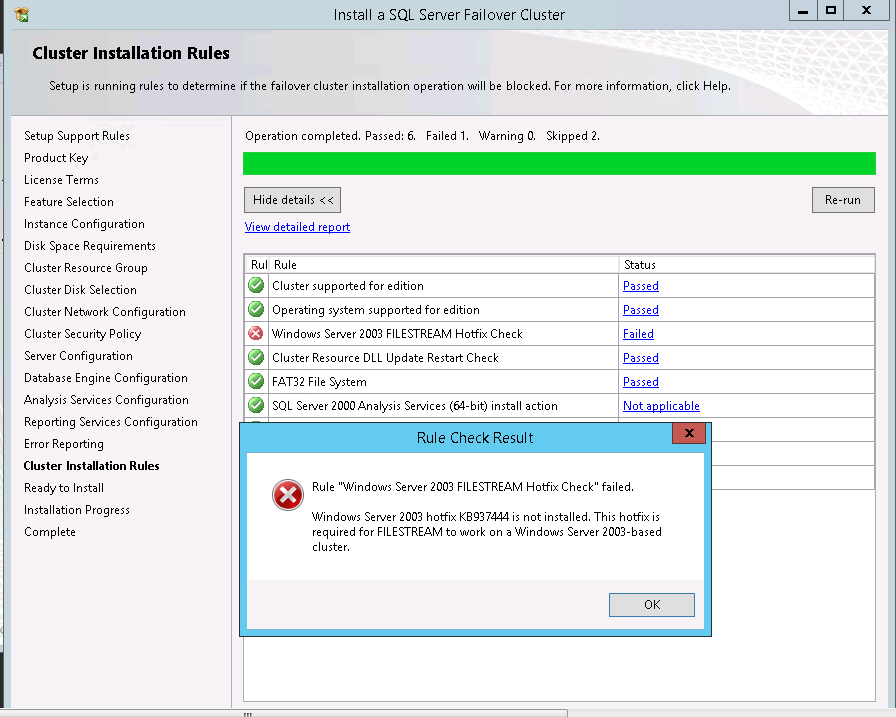
2. Error: Cluster Service verification Failed
    Description: During one of the Server Migration i.e. Windows Server 2012 and SQL Server 2008       R2

Install a SQL Server Failover Cluster

Solution: 

Follow the below steps:

Copy  C:\Windows\Cluster\Clusres.dll TO C:\Windows\system32 and rename the file to W03a2409.dll

For this error, if you will search in internet you might get multiple solutions. I found this solution is the shortest and best way to resolve the error.

I've got the solution of this from this Microsoft link.

Keep Learning and Happy Learning!!!

Monday, September 14, 2015

SQL Server 2012 Clustering - Part 3

Hi Guys,

As we have seen my previous posts on how to configure the Windows Clustering and Setup the Quorum, now we will move forwards towards the final step to configure the SQL Server Cluster.

Installing and Configuring SQL Server Cluster is very much similar to installing a SQL Stand alone Server. Here, we will install and configure a two node Active - Passive Cluster and will see only the different pages occur while Installing and Configuring the SQL Server Clustering rest pages remains the same.

Let's start with the installation of SQL Server Cluster on Active Server. Following are snapshots for it:

1. Start the installation and Click "Installation" link on left hand side of the page. And then start the installation with "New SQL Server Failover Cluster Installation".


2. After couple of Next and Next's you will land to "Instance Configuration" page. Now here you have to Enter the "SQL Server Network Name" and the "Instance Name" (For named instance)

For Eg. If you enter here the Network Name  as "SQLServer_01" and Instance Name as "SQL01". Then the Server Name in the connectivity will be "SQLServer_01\SQL01".


3. Again after few Next's you will land to "Cluster Resource Group" page, were you have to enter a Unique name as a Cluster Resource Group Name. This will help in case there are multiple Cluster configuration.


4. Here we have to check all the Disks which you want to bring under that Cluster Group.


5. Enter an "Unique IP address" in the Address box after un-checking the DHCP.


6. So by now your SQL Server Cluster is installed on the Active Node. Now, you have to start Adding node on the Passive instance. As you can see the snapshot you have to start the installation and Click "Installation" link on left hand side of the page. But this time choosing "Add node to a SQL Server Failover Cluster".


Rest of the process are simple. So now the SQL Server Cluster is ready to deploy your Database.

Click here to refer Part 1 and Part 2 of this topic.

We will discuss the Errors while configuring the SQL Server Clustering in different post. So stay tuned.

Till then Keep Learning and Enjoy Learning!!!