Showing posts with label Error. Show all posts

Thursday, January 21, 2016

Error - Instant File Initialization Failed

Hi Friends,

Here comes the first post of the wonderful year 2016 ahead. Last year, we have ended with the post on Introduction to Hadoop. Lets start our first post with an Error in SQL Server.

Description:

One of the error which I faced very frequently now a days as you can see the below snapshot: "File initialization failed" because of which my Restoration activity was failed.

This error occurred when I was in the middle of a Migration activity, were I was suppose to Backup and Restore a Database from one Server to another one. After executing the Restoration command with stats=1, I was waiting for 1 percent to complete (after that I can have a nap because the backup file was huge and the activity was at mid night) but I was awaiting awaiting and awaiting for that 1 percent. It was getting suspicious because it should not take too long to complete even a percent.

So, I decided to stop the restoration. Once the session was stopped I found the below error message:

Instant File Initialization Failed

Instant File Initialization Failed
Basically, I will try to explain the behind the scene what exactly SQL Server does then we create or Restore a backup file in different post. In this post just lets look for the solution for the error.

Solution:

1. Run => Secpol.msc;

Open Local Security Policy => Local Policies => User Rights Assignment => "Perform Volume Maintenance Task" => Right click => Add the user through which SQL Server services are running. Like you see in the below snapshot.

2. No need to restart the Server.

3. Now, start the restoration process and this time it will work well.

Perform Volume Maintenance Task

Perform Volume Maintenance Task

So from now SQL Server will skip the Zero Initialization whenever we create or restore a Database. Later we will see what exactly does this mean in probably in different post.

Hope this will save your time and this will help you. Don't forget to drop a comment below. Also do vote below if it is Interesting, Informative or Boring.

Facing trouble while switching the Database from Single User Mode to Multi Mode check here for solution.

(It's been so long, more than couple of weeks I was away from my blog. I'm afraid this could further continue for few more, due to multiple projects on weekdays as well over the weekends. Due to this, my Blogging might also affected. So, stay tuned soon we will learn many things on SQL Server as well as Hadoop Administrator.)

Thanks,
Vikas B Sahu
Keep Learning and Enjoy Learning!!!

Monday, November 2, 2015

Error - While Putting Database from Single to Multi User Mode

Dear Friends,

Click here to check how to start the SQL Server without TempDB Database. Let's learn what to do or how simple it can be to change the Database Mode from Multi User to Single User Mode or vice-versa?

Indeed! it is simple with the following command:

a. Alter Database Out set Single_User 
b. Alter Database Out set Multi_User

If we don't mention any termination clause like above it will run until the statements get completed.

Suppose there are n numbers of users connected to the Database and you executed the above command it will take hell lot of time to complete.
So rather, you can force disconnect the users to put the Database in Single User mode you have to fire the below command:

Alter Database out set Single_user with Rollback After 30 -- After 30 Seconds it will cancel and Rollback the Query

Alter Database out set Single_user with Rollback  Immediate -- It will immediately cancel and Rollback the Query

Alter Database out set Single_user with No_Wait -- If  there is any incomplete transaction No_Wait will Error

But again it might get horror if the Databases is in Single User and you cannot access the Database because only one connection can be made at a time and just think that connection is taken by the system i.e. SQL Server.

In this situation you are locked out, reason you cannot access the Database. Like you can see in the snapshot the Database Out is used by the system i.e. it is used by the Background process.

If you try to bring back the Database again in Multi User mode system will throw the following error:


Another possibility you can try would be detaching the Database. But when I tried detaching the Database, SQL Server will first kill the connections to the Database. Rather I should frame it as SQL Server will kill only the User connect and not the system connection.

After loads of struggle we were back to square one, that our Database was not getting back to Multi User mode. Seems it was like a deadlock between System SPID with Out Database. So we enabled the trace flag and checked the Error Log file. So following snapshot confirms that there was an deadlock:

DBCC TRACEON (1204,1222,-1)

Deadlock Graph
Deadlock Graph
If we try to Alter the Database to put it in Multi User mode. We will get a deadlock and since our Alter Statement is having low priority it will fail with the error message:


After random tries we tried the following command and it saved us. We have to set the deadlock priority high and then execute the Multi User mode query like below:

Set Deadlock_Priority High
Go
Alter Database Out Set Multi_User

So what this will do is it will set the Dead Lock priority High and Alter the Database to Multi User mode.

Guys do share the feedback about this article and of course about the blog too.

Want to start learning SQL Server Clustering?? Check here the three part series on SQL Server Clustering.

Do you know MS SQL Server 2016 is ready to launch?? Check here the two part series on New Features of SQL Server 2016.

Keep Learning and Enjoy Learning!!!

Tuesday, October 20, 2015

Error 233 - No process is on the other end of the pipe

Hi Guys,

As we have seen here an error related to SQL Server Restart. Today we will see another error i.e. Error 233 "A connection was successfully established with the server, but then an error occurred during the login process."

You might have faced this common issue in your DBA career and yes the solution is relatively simple.

So what I was doing, I was connecting to the SQL Server from Windows Login but during the login process it failed and prompted the below error message:

Error 233 in SQL Server
As I said this seems an common problem so there might be multiple workaround for this.

Now, for me the solution was to start the SQL Server management Studio (SSMS) under "Run as Administrator" (When I was fresher, I use to always wonder what difference it makes if I start any program under Run as Administrator?? Let's find out the reason for that).

Reason for this error was:

a. When we are running an application under "Run As Administrator" we get extra privileges which we may not have under the local user account.

b. So running the program under Run As Administrator will grant extra rights to the account (but it should have admin rights in Active Directory).

Once I started the SSMS under Run as Administrator and connected to SQL Server it succeeded.

There might be chances that this may not solve this  issue, check here to find more work around on the issue.

Do you know?? We should properly set the Auto Growth parameter in Database else it would end up with consuming extra space. Check here.

Thanks,
Vikas B Sahu

Keep Learning and Enjoy Learning!!!

Wednesday, October 7, 2015

Error - Analysis Services Failed To Start in SQL Server 2012

Hi Guys,

Read my last blog on Error while configuring SQL Server Cluster here. As a DBA, we cannot or say we should not limit our self to only Database Engine related stuff. Today let's learn something related to Analysis Service i.e. SSAS.

In one of the migration project, I wanted to migrate an SSAS Database which is called as "Cube" to another Server.

So firstly, I needed the backup of the Cube. See the following command to take the backup of the Cube.
SSAS Cube Backup Code
Where Test is the Database Name and Test.abf is the Backup Name (Which will take the Backup in the default location).

Now, I wanted to restore this backup to my new Server. But when I tried to connect the SSAS, it got  failed due to SSAS was disabled. So tried to start the SSAS and it gave the following error:

SQL Server Analysis Services Stopped

And when I checked Windows Event Viewer it captured the below error message:

Windows Event Viewer Error
Windows Event Viewer
From the Error in the Event Viewer it is confirmed that it is related to something with permission issue. So what we commonly do is "Going to that particular drive\ Folder and give full right to the account which runs the SQL Server Analysis Services". But unfortunately it din't helped.

I started searching more in google related to this error and in most of the sites they will provide the same solution which we saw above. And the search continued and continued till I landed to the next solution. And solution was to check the msmdsrv.ini file (It is an Configuration file for AS).

Basically when we configure AS, we have to pass a location where Data and Log file will create, but in my case no such files where created. So what did was as follows:

1. Created two Folder's Data & Log on E:\ and F:\ drive respectively and gave full permission to it.

2. Open the msmdsrc.ini file (in notepad) from this location (default):

C:\Program Files\Microsoft SQL Server\MSAS11.MSSQLSERVER\OLAP\Config

msmdsrv.ini
msmdsrv.ini File
3. As we can see DataDir and LogDir tags which contains the location for the files; Change the path save it.

4. Then tried to re-start the AS and it was successfully started.

So the resolution for this seems simple. Want to know what is SQL Server Azure read my introduction post on Azure. Do comment if you like of dislike the page.

Thank You !!!
Keep Learning and Enjoy Learning !!!

Monday, October 5, 2015

SQL Server 2012 Clustering Errors

Hey Friends,

So till now we have seen the installation and configuration of SQL Server 2012 Clustering in our three part series as Part 1, Part 2 and Part 3 of SQL Server 2012 Clustering.


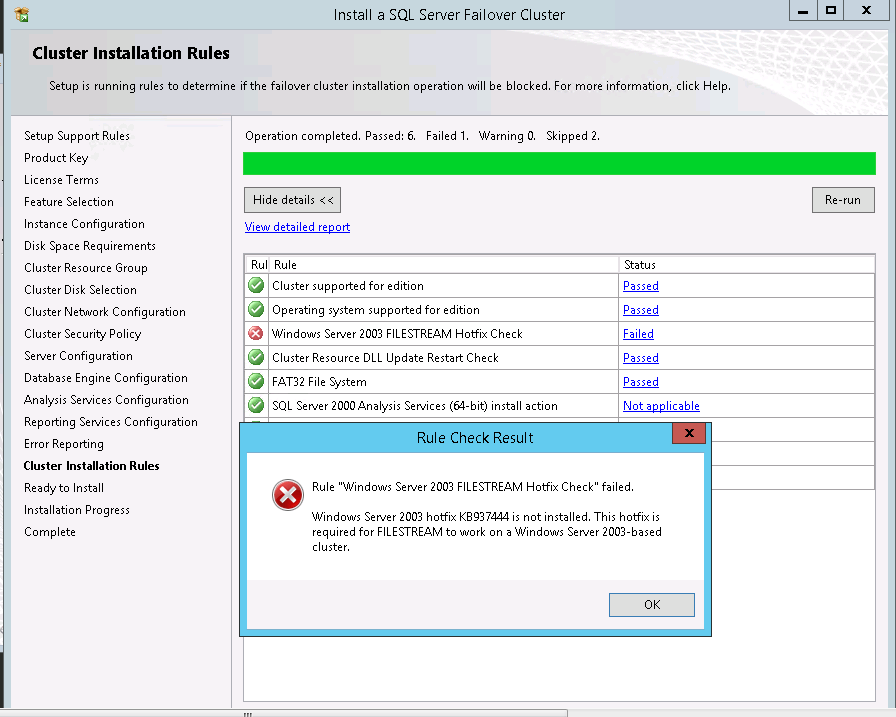
Now let us see few errors which I have faced during the Installation and Configuration of SQL Server 2012 Clustering:

1. Error: Cluster Service verification Failed
    Description: During one of the Server Migration i.e. Windows Server 2012 and SQL Server 2008       R2

Add a failover Cluster Node
Error-1
Solution: The solution was basically we have run the below command from the power shell:

Install-WindowsFeature -Name RSAT-Clustering-AutomationServer

Basically MsClus.dll library is by default disabled in Windows Server 2012. So by running the above command it enables it which is require for installation of SQL Server 2008 R2 Cluster.

I've got the solution of this from this msdn link.

2. Error: Cluster Service verification Failed
    Description: During one of the Server Migration i.e. Windows Server 2012 and SQL Server 2008       R2

Install a SQL Server Failover Cluster

Solution: 

Follow the below steps:

Copy  C:\Windows\Cluster\Clusres.dll TO C:\Windows\system32 and rename the file to W03a2409.dll

For this error, if you will search in internet you might get multiple solutions. I found this solution is the shortest and best way to resolve the error.

I've got the solution of this from this Microsoft link.

Keep Learning and Happy Learning!!!

Tuesday, September 8, 2015

Error 1807 - Database creation failed


Hi Friends,

While creating a Database an Error 1807 occurred as you can see the following snapshot.

Basically the create database failed due to an exclusive lock cannot be obtained on "Model" Database. 

Error 1807 - Database creation failed
Error 1807 - Database Creation Failed

Run the below set of queries to find out were exactly is Model Database is on use:

Use master
  GO
  IF EXISTS(SELECT request_session_id  FROM sys.dm_tran_locks
  WHERE resource_database_id = DB_ID('Model'))
   PRINT 'Model Database being used by some other session'
  ELSE
   PRINT 'Model Database not used by other session'


  SELECT request_session_id  FROM sys.dm_tran_locks
  WHERE resource_database_id = DB_ID('Model')


DBCC InputBuffer(52)

Kill the SPID and re-run the create database syntax. This time you will create a Database without any error.

Check out the error here while executing the Extended Stored Procedure.

Keep Learning and Enjoy Learning!!!

SQL Edition Upgrade Architecture Mismatch

Hi Friends,

I have recently posted an article on how to configure Quorum which was Part 2 post of three part series of SQL Server Clustering.

Recently I was checking my old mails and from that I found an error which we have faced a year back. So though of sharing with you guys. As my headline states "SQL Edition Upgrade Architecture Mismatch", yes it some what belongs to Edition Upgradation error.

Following is the snapshot of the error:

SQL Edition Upgrade Architecture Mismatch
Error - SQL Edition Upgrade Architecture Mismatch
Generally we do get this error on the landing page itself during the verification step if SQL Server found there is mismatch in the Bits i.e. x86 or x64 Bit. So the solution for this is very much simple.

Go to the Option tab on the left hand side in the initial page. Now you can see there are two radio buttons x86 and x64. By default its x64. You can change this as per your requirement.

You can see the following snapshot for reference:


After changing it you can proceed with the installation part.

If anyone of you planning for SQL Server Certification refer this post, it will give you an overview on the examination. Also you can comment on it if you have any.

Keep Learning and Enjoy Learning!!!

Tuesday, August 25, 2015

Error 1814 - Could not Start SQL Server Services

Hey Guys,

Some of you might be very well familiar with the below error. Let's see under what circumstances I've faced this error.

Few months back while I was configuring "AlwaysON" on one of the Server, something went wrong and due to which I've to completely decommission the AlwaysON configuration along with Windows Clustering.

After doing this, I restated the server and when the server was up what I saw was the SQL Server service was disabled, tried starting the same through Configuration Manager but hard luck I was facing the below error message.

Error 1814
Error 1814
Let's have a look below into the SQL Server Error log what its was it looking like:

Error Log
Error Log
With these error logs we started troubleshooting:
  1. The error in the SQL Error Log states that due to insufficient disk space "TempDB" was not created.
  2. Now what we were wondering about the error, as it was a new Server and disk was having sufficient space. So insufficient space was out of question.
  3. Just to cross verify I open the My Computer tab and what I saw was only C: drive was reflecting and rest of the drive were not visible.
  4. While installation I have kept the TempDB in D: drive.
  5. Now here comes the twist, let's recollect the above activity of AlwaysON which I was performing. But for some reason I have to decommission it.
  6. During decommissioning I've put the disks into offline state and due to which the disk were not accessible.
  7. So at start of SQL Server if the TempDB is not created, the SQL Server Services will not start.
Brief note on System Databases:

  1. Master, Model, MSDB and TempDB are system databases.
  2. Files of the Master Database is used in start up parameter during the SQL Server instance starts. 
  3. So if the Master Database is corrupted SQL Server instance will not start. 
  4. Also as it's one of the important properties is it stores the location information for other Database. Therefore Master Database is said to be the heart of SQL Server.
  5. Model Database acts as a template for the other User Database as well as TempDB while creation.
  6. So even if Model Database is corrupted SQL Server instances will not start. As indirectly TempDB will not start and if TempDB will not start SQL Server instance will not start.  
So guys System Database plays an very important role in proper functioning of SQL Server Instance.

Here my question is: What if MSDB is corrupted, will the SQL Server Instance will start? You can comment below.

Thank You Guys.
Keep Learning and Enjoy Learning!!!

Thursday, July 16, 2015

Msg 22049-Error executing extended stored procedure: Invalid Parameter

Hi Guys,

It's time to learn from the error which I went today. If you remember I have posted here a backup script. The purpose of the script is to take Database backup along with few options. The script has undergone through few changes now.

But here I want to discuss an issue which I faced during implementing this code on one of new environment.

Scenario:

  1. We wanted to configure this Database Backup Script in a new Server. There where few Databases on the Server. What we noticed was one of the Database name in the that Server was having 60 character (It was an Share Point Application Database).
  2. And due to that we were getting this (Msg 8152, Level 16, State 2, Line 1 String or binary data would be truncated) error message.
  3. For sake, we had changed the variable to Nvarchar(Max).
  4. After changing this variable there was another error popped up.Error was (Msg 22049, Level 15, State 0, Line 0 Error executing extended stored procedure: Invalid Parameter).
  5. Please see the Figure 1 snapshot.
  6. But in between Step 3 and 4; I was executing the SP from a Job and was unable to see this error message. As some of the error message were truncated. So I ran the SP manually from SSMS and I got to know about this error.
  7. Looking into the error, I came to know there was a problem in my last portion of the code.That means First portion 'To take DB Backup' was running fine and the Second part 'To delete the old Backup' was creating issue as I was using Extended Stored Procedure (i.e dbo.xp_delete_file)
  8. Not sure what was the issue after doing little research found an partial solution and then tested the code with some changes in variable and it was successful.
  9. Please see the demo code in Figure 2.  

Msg 22049-Error executing extended stored procedure: Invalid Parameter
Figure 1
Figure 2
Can you find any difference in Figure 1 and Figure 2?? (Of course apart from the Error)

The solution for the error was @path variable in the above code has datatype Nvarchar(Max) and if that is called from the extended Stored Procedure like in our case from dbo.xp_delete_file it throws the above error.

But if we pass the datatype as Nvarchar() like in Figure 2 and passed to Extended Stored Procedure the error is solved. 

So do remember if we are passing any variable to Extended Stored Procedure do defined a fixed value to the variable.

Keep Learning and Enjoy Learning!!!