Dear Friends,
As you have seen how to configure Windows Clustering, now let's proceed to the next step of SQL Server 2012 Clustering which is Configuration of Quorum.
For configuration of Quorum following are the two approaches:
Method 1: Failover Cluster Manager GUI
Method 2: Windows Power Shell
Let's have a look how to configure Quorum by these two method:
Method 1: Through Failover Cluster Manager GUI
Below are the snapshot with description for the configuration of Quorum:
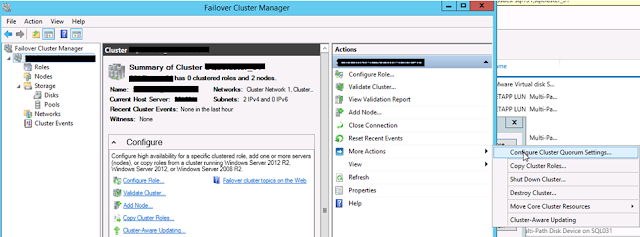
1. Open the FOCM (Failover Cluster Manager). Towards the extreme right you can see "More Actions" Click that then click "Configure Cluster Quorum Settings...". You can see these steps in the below snapshot.
2. Once you are in the page of cluster configuration you can refer the below snapshot in clockwise direction.
i. Check the radio button "Select the Quorum Witness".
ii. Next check "Configure a file share witness".
iii. Pass the location (path name), here it will create the binary for Quorum.
iv. Click next and check all the settings which you have configured.

3. Click Finish and view the report. You have successfully configured the Quorum.

Method 2: Through Windows Power Shell
Configuring Quorum through Windows Power Shell is simple. The only thing we need to run is a one liner command as you can see in the below snapshot.

Till now we have seen how to Configure Windows Cluster and Configuration of Quorum. So both these are the pre requisite for configuration of SQL Server Cluster as well as SQL Server AlwaysON. In the Part 3 of the post we will see how to configure SQL Server Cluster.
Refer to the link of msdn here for more knowledge on Quorum setting.
Click here to refer Part 1 and Part 3 of this topic.
Thank you guys for reading the post, click here to read my first post on this blog. Do comment on the post.
Keep Learning and Happy Learning!!!
As you have seen how to configure Windows Clustering, now let's proceed to the next step of SQL Server 2012 Clustering which is Configuration of Quorum.
Method 1: Failover Cluster Manager GUI
Method 2: Windows Power Shell
Method 1: Through Failover Cluster Manager GUI
Below are the snapshot with description for the configuration of Quorum:
1. Open the FOCM (Failover Cluster Manager). Towards the extreme right you can see "More Actions" Click that then click "Configure Cluster Quorum Settings...". You can see these steps in the below snapshot.

2. Once you are in the page of cluster configuration you can refer the below snapshot in clockwise direction.
i. Check the radio button "Select the Quorum Witness".
ii. Next check "Configure a file share witness".
iii. Pass the location (path name), here it will create the binary for Quorum.
iv. Click next and check all the settings which you have configured.

3. Click Finish and view the report. You have successfully configured the Quorum.

Method 2: Through Windows Power Shell
Configuring Quorum through Windows Power Shell is simple. The only thing we need to run is a one liner command as you can see in the below snapshot.

- Open Windows Power Shell from the Task bar or open run and type "powershell".
- Run the below command:
- Set-ClusterQuorum -NodeAndFileShareMajority \\abc\sqlserver\
Till now we have seen how to Configure Windows Cluster and Configuration of Quorum. So both these are the pre requisite for configuration of SQL Server Cluster as well as SQL Server AlwaysON. In the Part 3 of the post we will see how to configure SQL Server Cluster.
Refer to the link of msdn here for more knowledge on Quorum setting.
Click here to refer Part 1 and Part 3 of this topic.
Thank you guys for reading the post, click here to read my first post on this blog. Do comment on the post.
Keep Learning and Happy Learning!!!